I like to think that fuckups don’t happen by mistake, mostly by accident. But the folks at the Windows team, at least the managers, appear to have never used Windows before. They want to do desperately be like Apple’s MacOS or Google’s ChromeOS that they are willing to sacrifice their own already-working workflow for the sake of being close to that. And if I can be honest, that is very bad.
So instead of complaining about Microsoft lost their way (they have), how about we fix Windows 11 so you can use it, the way you want to and the way it’s supposed to be? Yeah, let’s do that.
This post exists to fix the issues that I have with Windows, in general. Also to serve to whoever wants to jump to Windows 11 without facing the issues it has.
First Step: GAC vs. LTSC
The first thing is to pick what you want: GAC or LTSC. GAC means ‘General Availability Channel’ and LTSC means ‘Long Term Servicing Channel’.
Generally speaking, you want to opt with GAC releases because they are the most updated ones, and the ones that actually come with stuff you want to use. If you want to play games on Xbox PC app (why though?), getting this version would be much better because it comes with everything you need to get started, even the stuff you don’t want. Thankfully, you can remove those.
LTSC is for computers are not gonna receive updates for a long time, and have to be up all the time, like ATMs, and the like (servers use Windows Server instead). Normal people shouldn’t use this, because despite the smaller footprint (since it doesn’t have many pre-installed apps), it’ll still have most of the annoyances (like the telemetry thing) and you’ll need to install most apps to get it to work for a gaming purpose. If it’s a light system, like something that will need to use about 8GB of RAM, stick with Windows 10, or better, get Windows 10 LTSC instead.
One good thing about when you debloat a GAC release is that it won’t install the missing updates during a massive Windows update. And even if it somehow does install them again, you can remove it again.
Second Step: ExplorerPatcher
ExplorerPatcher is an application made to enhance the Windows experience, by making it feel like older versions of Windows.
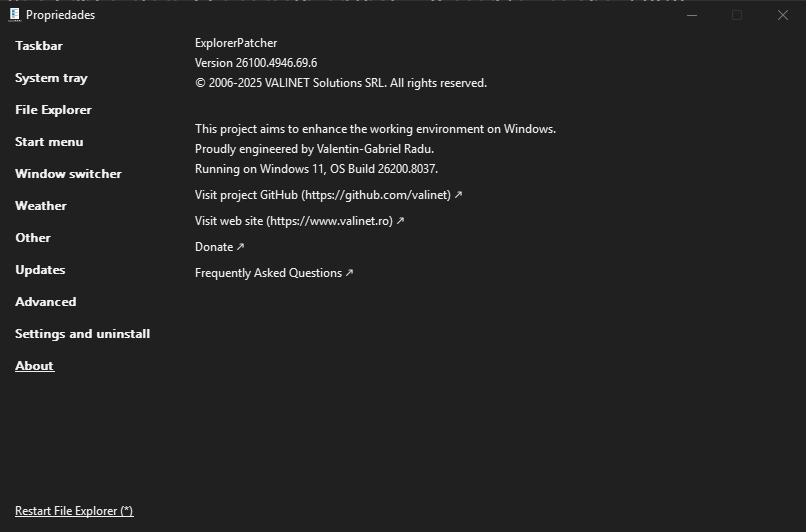
Quite simply, it allows you to customize the Start Menu and Taskbar to be exactly like how it was using Windows 10 in its later updates (aka actually usable), plus fixing the right-click context menu. There’s also another set of cool features, such as the ability to get the old Windows 7 flyout popups for Volume control, and so on.
I not only recommend you getting this, but I absolutely think this is required to use Windows 11 effectively. In fact, I got my mom a laptop and my dad a full blown PC, both in 2025, and both have Windows 11 with ExplorerPatcher on it, and there’s 0 complaints.
Third Step: Debloater
There’s too many of them out there, and uh… pick what you want.
My personal pick? Win11Debloat.

Wait, what is a debloater? Well, it is as its says. Windows comes with many applications that are not really useful for the average user. While OneDrive and Xbox might be useful for a set of people, some of them don’t want it but they still take up space and resources of your machine, meaning it’s pointless to keep it around. There are also other things that are just annoyances and keep using resources that are not needed, so they should go away as well.
Bonus, it also removes any unnecessary and absolutely unneeded AI features added in Windows 11, so I don’t need to make a separate section for it.
Double bonus: if you decide to use LTSC, I still recommend a debloater because telemetry is still enabled.
Additional steps: Other Apps
To further enhance the Windows 11 experience to a positive side, here’s another set of apps that I like to include here.
ExplorerTabUtility fixes one of the worst problems that Microsoft introduced with they created the Tabbed Explorer: Not centralizing everything into one window. What’s the point of making a tabbed explorer experience if programs can just open new windows for themselves? It’s annoying. This application fixes it.
QuickLook brings the preview function from MacOS to Windows. That’s it. It’s pretty cool.
While it’s not necessarily for Windows, WinDirStat is a free application that allows you to tell exactly what is taking space of your drives. You can sort it by name, size and so on.
Can’t forget the classic Winaero Tweaker. Came out over 10 years ago and still going strong, giving several options to customize your Windows experience. Some of the ExplorerPatcher and debloater functions are also contained here, but you can just them again.
Similarly, gBurner used to be paid, but most of its functions are now free, so you should definitely use it. gBurner is a CD/DVD/Blu-Ray/discs in general burning application that you can use to create discs, both real and virtual. It’s very good in my opinion.
Additionally, you can get gBurner Virtual Drive (also free!) that allows you to mount discs on your PC without any issues, also allowing 4 discs at the same time, supporting lots of different formats.
Lastly, Notepad++. The coolest app to write that you know, you can do everything with it and it doesn’t suck. Customizable, can be used in almost every file (not just text ones) and it’s free.
Closing Words
Microsoft really screwed up Windows with Windows 11 and it appears that they are relenting with some new design decisions, like removing AI and optional login from Notepad and Paint (why would you even add that in the first place?). But as demonstrated, you don’t need any of that, and considering that Windows isn’t as lockdown as Microsoft would like, you can just tell it to shut up.